Give the mask a small margin
Letters in generated images often have shadows, outlines or glow. Paint slightly past the strokes so no faint ghost of the text survives.
Looking for a ChatGPT watermark remover? First, the honest answer: images made with ChatGPT or the OpenAI API do not carry a visible watermark. What usually needs cleaning is text inside the picture – garbled lettering, a headline or price you want to change, or a label added later – and this editor lets you mark that text and fill the area with an in-browser AI model.
JPG, PNG or WebP. Drop, paste or pick a file. It is processed in your browser.
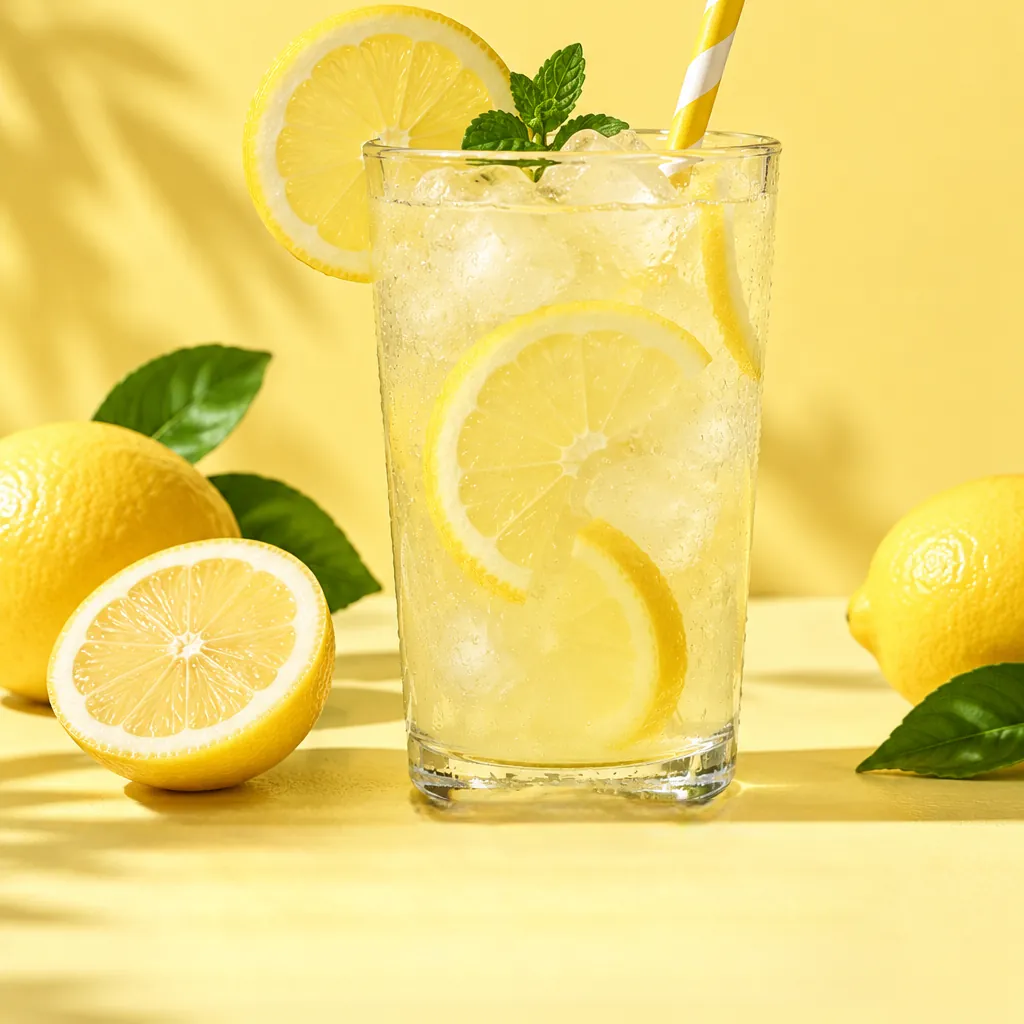
Not one you can see. OpenAI marks its images in ways that live in the file and the pixels rather than as a logo in the corner, which is why searches for a ChatGPT image watermark often end in confusion.
There is no hidden visible mark to find. SynthID stays in the pixels whatever you edit, and the C2PA credentials describe the original file, not your edited copy. If you see text on a ChatGPT image, it was either drawn by the model as part of the picture or added afterwards.
Everything happens on this page. The picture is decoded and repaired inside your browser, and it is never sent to a server.
Use the Upload button, drag the file onto the page or paste it straight from the clipboard after copying it in ChatGPT. JPG, PNG and WebP are supported.
Press "Auto-mark text" to highlight text regions, then review the mask. It finds text in general, so switch to Unmark for lettering you want to keep and use the brush for anything it missed.
Press Erase. An AI inpainting model rebuilds the masked region from the surrounding pixels. Zoom in to check edges, then brush and erase again if a trace is left.
Download the cleaned image as a PNG. Undo and redo let you step back through each pass before you save.
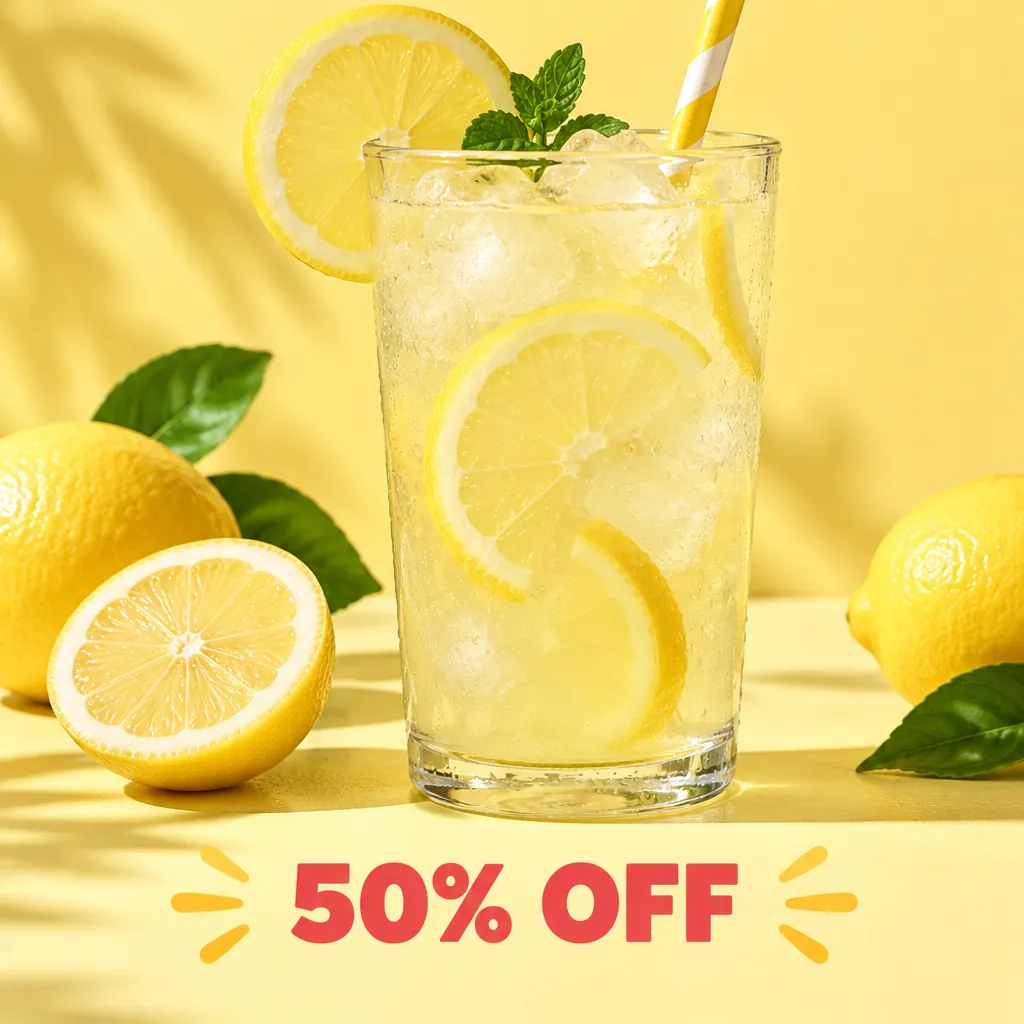
Promotional art is where AI text causes the most trouble. A sale banner, a misspelled word or a placeholder price can make an otherwise good image unusable until the lettering is gone.
AI-generated text often sits on top of detailed backgrounds, so a little care with the mask goes a long way.
Letters in generated images often have shadows, outlines or glow. Paint slightly past the strokes so no faint ghost of the text survives.
Quality mode uses a larger model and copes better with textures like fabric, foliage or wood. Fast mode is handy for a quick check, especially on a phone.
If the words cover a face, a product or most of the frame, inpainting has little to work from. Asking ChatGPT for a version without text is often the better route.
Not a visible one. ChatGPT and API images have no logo or label in the corner. They do include C2PA content credentials, and since May 2026 a SynthID invisible watermark in the pixels.
Visible text and marks inside the image: lettering the model drew, captions, price tags, stickers or app labels. You decide what goes by marking it; "Auto-mark text" only suggests text regions and you should always check the mask.
This editor does not try to detect or remove invisible provenance marks. Because the result is a new PNG drawn from the browser canvas, the original file’s metadata (OpenAI’s C2PA content credentials) is not copied into the download. That is a side effect of re-encoding, not a way to erase provenance: SynthID lives in the pixels themselves, is designed to survive edits like this and is not affected by the tool. Keep the original file and disclose AI generation wherever it is required.
Upload or paste the image here, mark the text, press Erase and download the PNG. It costs nothing and does not need an account.
Only edit images you have the right to use. Follow OpenAI’s usage policies and the disclosure rules of the place where you publish, keep AI disclosure wherever it is required, and never use an edited image to pass AI-generated content off as human-made or real.
No. The image is processed locally in your browser. Only the AI model files are downloaded the first time you use the editor, and they are cached for later visits. The tool works on images only, not video.
Each platform marks its images differently. Pick the guide that matches where your picture came from.
Paste or upload the image, mark the lettering you do not want and download a repaired PNG, all inside your browser.